Recipes: build a meal once, log it in a tap
If you track for a while, a pattern shows up: you eat the same handful of meals over and over. The potato salad you make on Sundays. The overnight oats. The post-gym shake. Recipes are for exactly those — build a meal once, and from then on it's a single tap to log.
This is a walkthrough of how recipes work and how to use them. No rush — let's start with the problem they solve.
The repetitive part of tracking
A made-from-scratch meal is rarely one thing. Your potato salad is potatoes, plus mayo, plus an egg. Before recipes, you had two options, and neither felt great: log each part as its own entry every time, or log one entry and re-add the same numbers by hand, day after day.
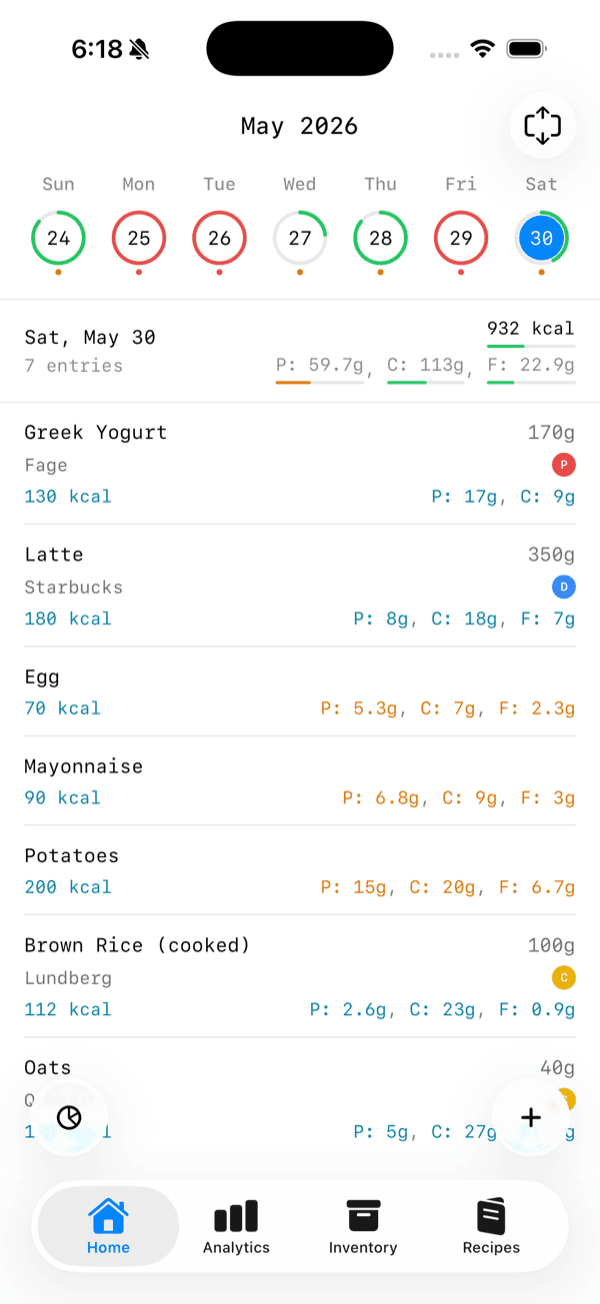 Before recipes, a composite meal meant logging each part on its own — and redoing it the next time you ate it.
Either way, you were re-doing work you'd already done. Recipes remove that.
Build a recipe once
Head to More → Recipes and tap the +. It's a two-step sheet, the same shape as meal plans:
- Details — give it a name, and a serving size (recipes default to "1 serv", meaning one serving is the whole dish).
- Components — add the foods that make it up. These come from what you already track: your inventory items or past entries. Set how much of each you actually use.
The recipe's calories and macros are just the sum of its parts, so there's nothing to total up yourself.
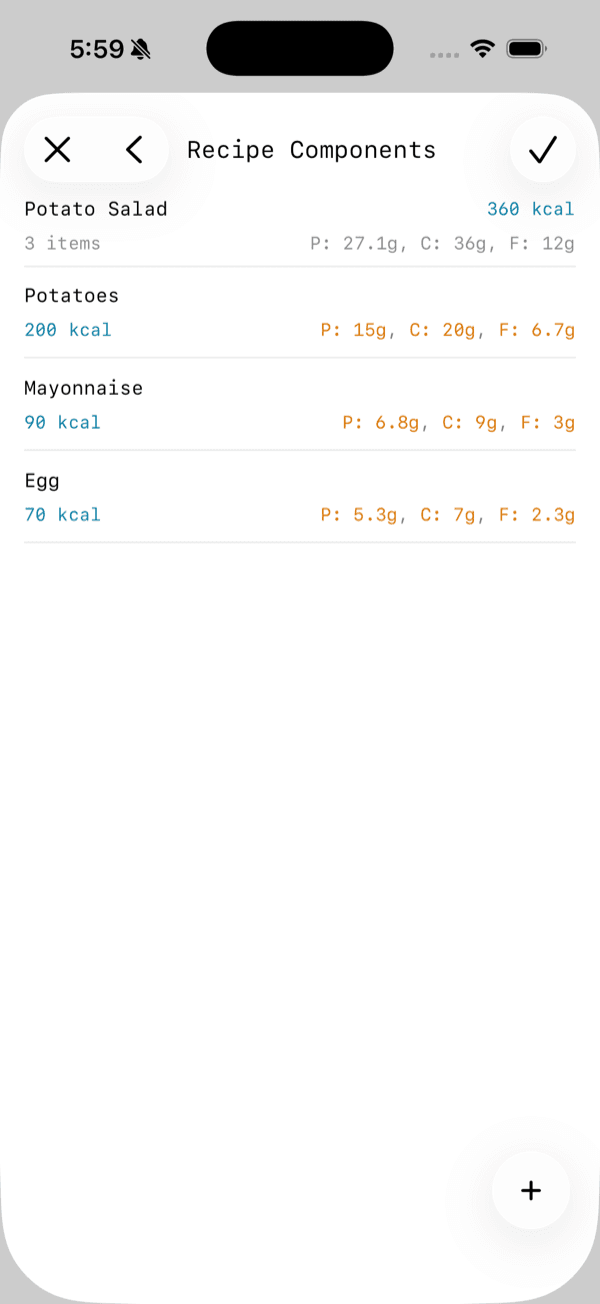 Step two: add the foods that make up the dish. The recipe's macros add up automatically.
Log it in a tap
Now the payoff. Next time you add an entry, start typing the recipe's name. It shows up in the suggestions with a purple Rec badge, right alongside your inventory and past entries.
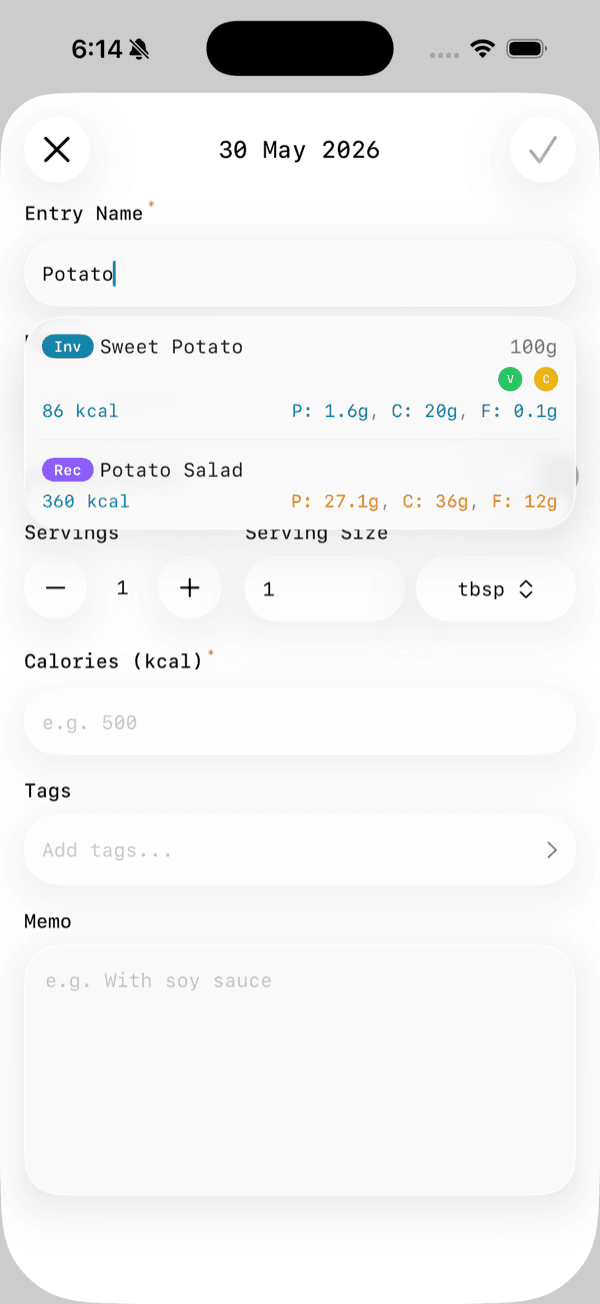 Recipes appear in the entry suggestions with a purple "Rec" badge.
Tap it and you're asked a simple question: use it as-is, or adjust it first? Choose Use as-is and the entry fills with the recipe's totals. The individual foods land in the memo as a tidy breakdown, so you've got a clean number for your day and a record of what went into it.
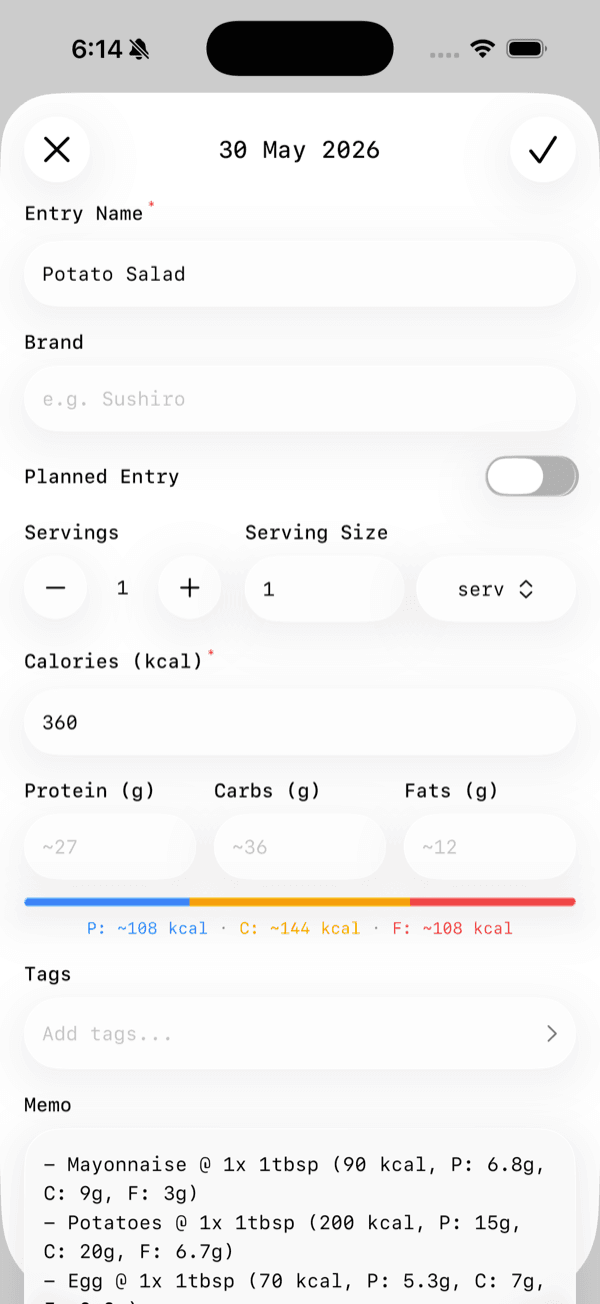 The entry fills with the recipe's totals, and the breakdown lands in the memo.
When the day doesn't quite match
Real cooking is loose — maybe today you used four potatoes instead of three. That's what Adjust is for. It opens the recipe's components so you can nudge a quantity or a number for this one entry. When you're done, we ask whether to save the change back to the recipe or keep it just for today — so a one-off stays a one-off, and a real improvement sticks.
Share a meal with a friend
Found a combination worth passing on? Swipe a recipe and tap share to get a QR code or link.
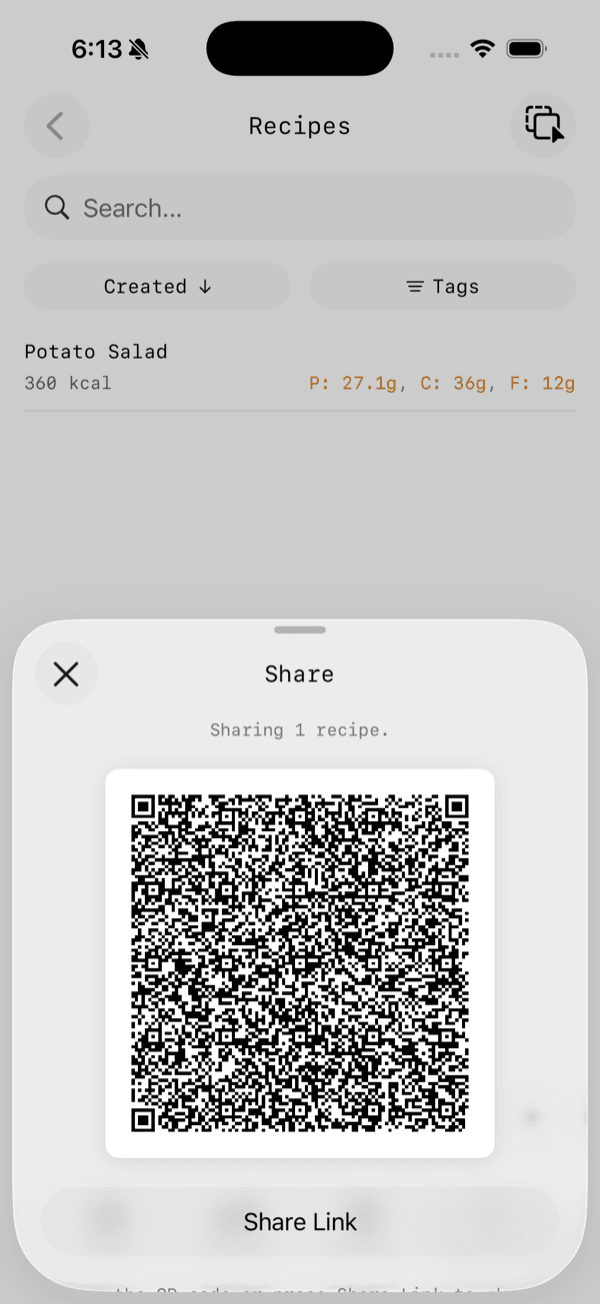 Share a recipe as a QR code or link — your friend gets the whole dish.
On the other end it arrives as a complete recipe — the dish plus every component — ready to review and save. We deliberately don't try to match it against their existing food, because guessing wrong there quietly messes up someone's data. What they get is exactly what you built, and it's theirs to keep or tweak.
A little on how it works
A couple of decisions under the hood that you'll feel without thinking about them:
- A recipe's components are snapshots. Each one remembers its own numbers, so deleting or editing the original food later never silently rewrites your recipe — or any meal you've already logged from it.
- The entry stores the final number, not the parts. Your day stays clean; the breakdown lives in the memo if you ever want to look.
That's it. Build the meals you eat often, and let the tapping get shorter. Recipes live under More → Recipes whenever you're ready to make your first one.